Connect by SFTP from the Files Tab
Find the SFTP host, port, username and password of your game server or app in the strip at the top of Files, and open them in FileZilla or WinSCP.
Every game server and app on SolumeCore shows its SFTP details at the top of the Files tab. The strip there has your host, port and username always in view, and the Connect by SFTP button opens a small panel with the password, a button to create or change your SFTP password and Open in FileZilla / WinSCP. This article explains that strip and the other two places that lead to it, so you can connect from your computer in a minute.
If you have never used SFTP, it lets you copy files between your computer and the server with an app such as FileZilla or WinSCP, as if it were a folder. It is the best way to move big files like worlds, modpacks or a whole project.
Find the strip in Files
- Sign in to the SolumeCore panel and open your game server or app.
- Open the Files tab. Above the file list you see the strip with the Host (for example
game-mia-02.solumecore.com), the port and your username.
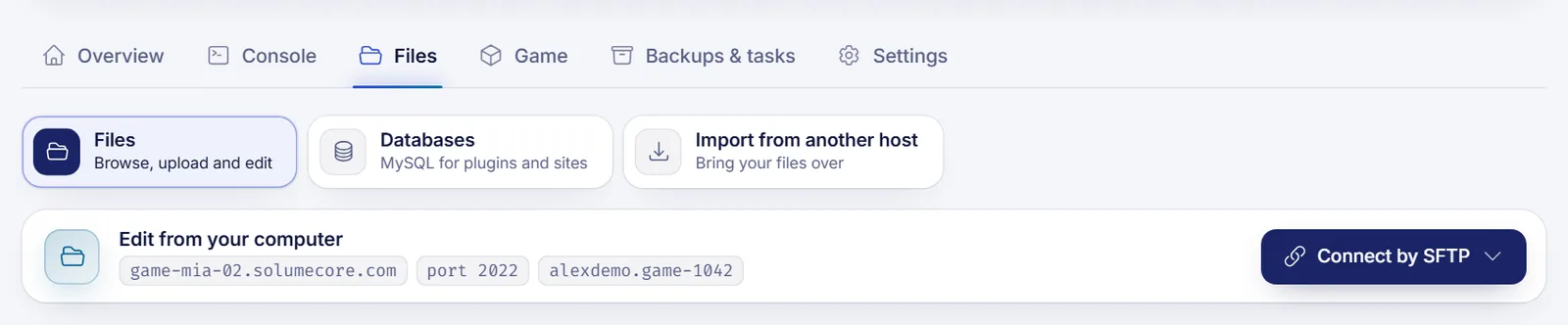
The strip is there on every part of the Files tab, so it does not matter whether you were looking at Files, Databases or Import from another host.
Open the details with Connect by SFTP
Click Connect by SFTP. A panel opens right under the button with:
- Host, Port and User, each with a copy button.
- Password: what to use. It says whether you already have your own SFTP password, whether your account password works, or whether you need to create one.
- Create an SFTP password or Change SFTP password. A new password is shown only once: copy it straight into your SFTP app.
- Open in FileZilla / WinSCP, which opens the SFTP app your computer has set for
sftp://links, with the host, port and user already filled in.
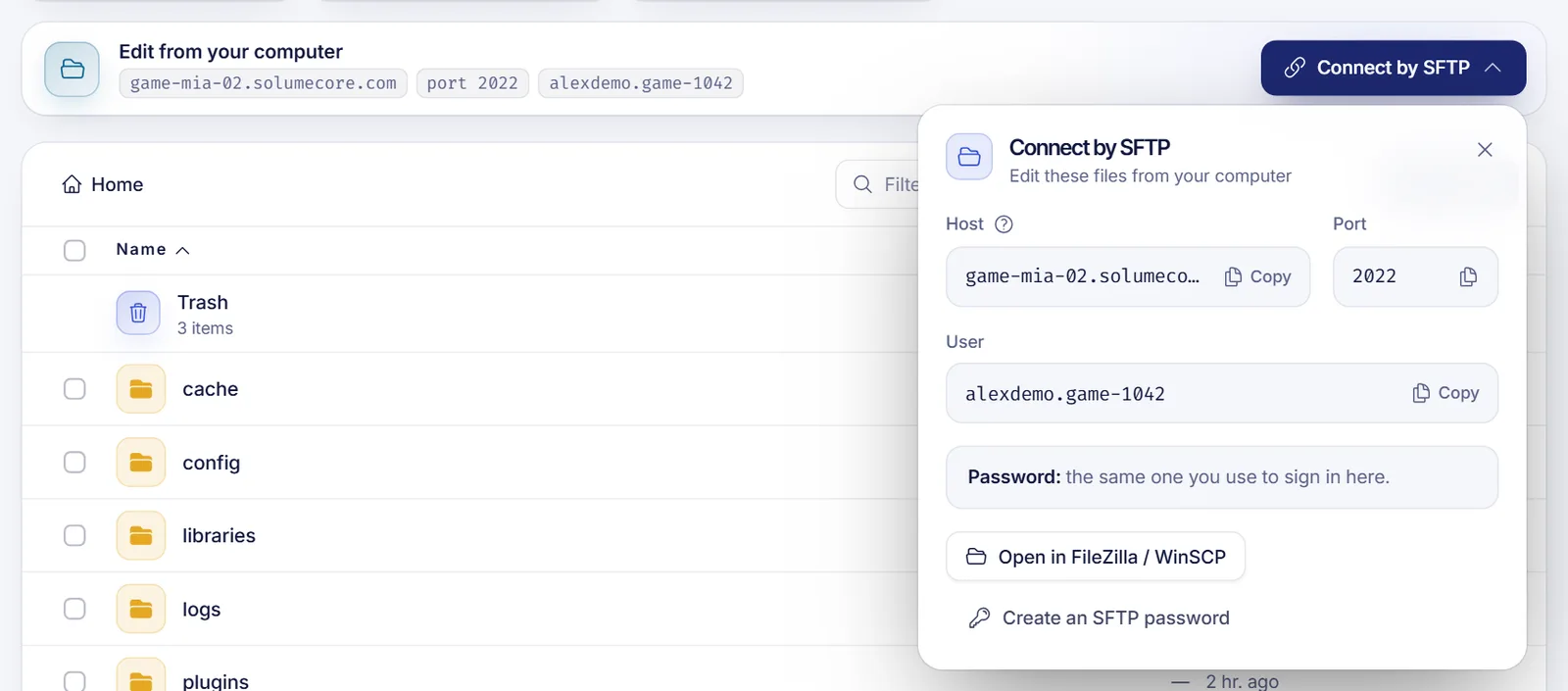
Click outside the panel or press Esc to close it.
If you turned on two-step verification, your account password does not work for SFTP. Create an SFTP password with the button in the same panel.
Two shortcuts to the same details
- Overview › Connect by SFTP: on a game server, the Connect by SFTP card among the things you do most opens Files with the panel already open.
- Connect, in the header of the server: the same panel that shows the address to play also has the SFTP details, from any tab.
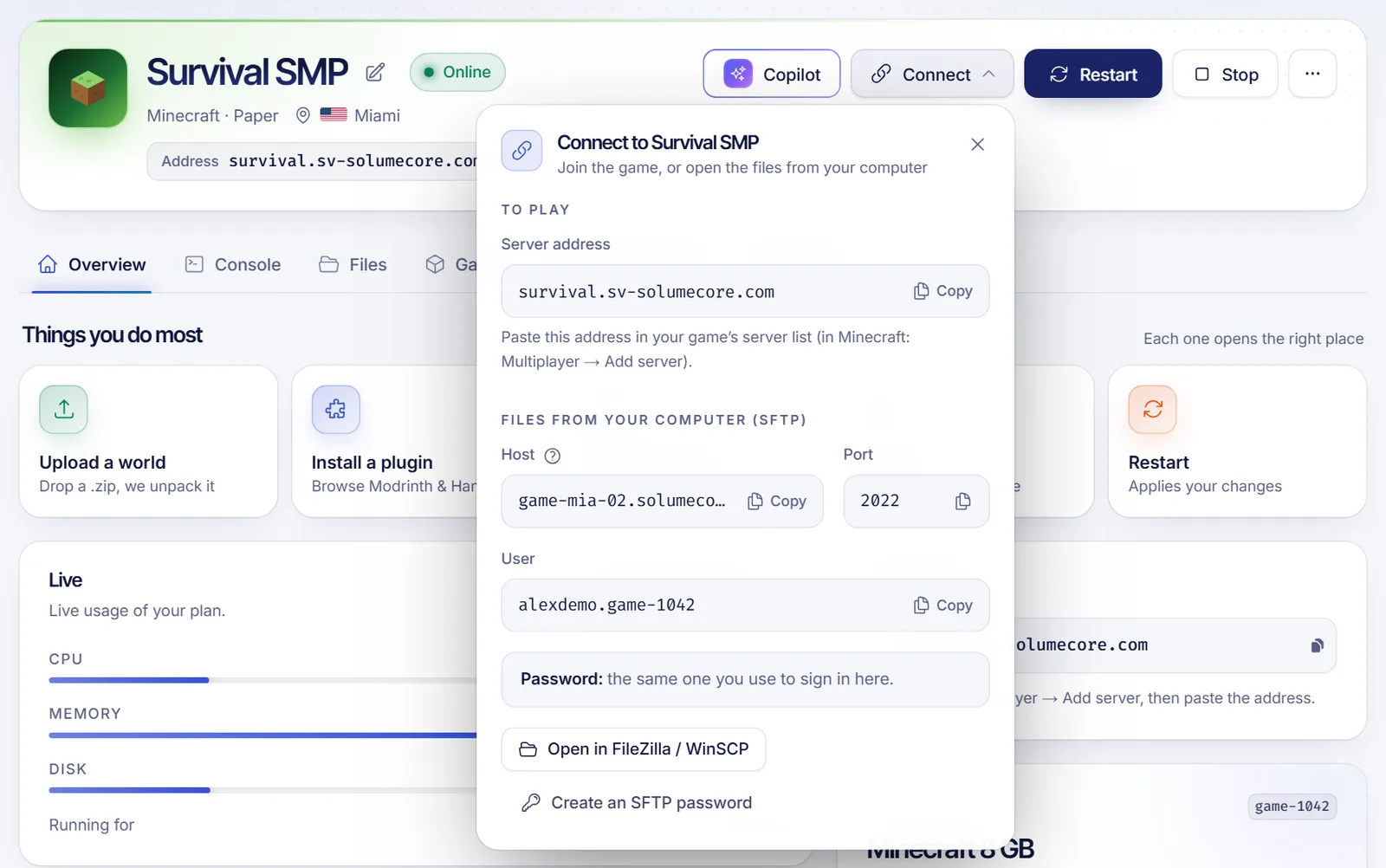
Once you have the details, follow the step by step for your app in connect to a game server with SFTP. Every value is listed in the SFTP connection reference.
Other types of service
- Web hosting: it uses FTP, and its details are in the FTP access card of the Files tab, with the same password as cPanel. See connect to your web hosting by FTP.
- VPS and VDS: you connect as
root(or the user you created) with SSH or SFTP on the server's IP. The details are under Connect in the header.
FAQ
Why don't I see the strip in Files?
The strip appears on game servers and apps. If someone shared the server with you, you also need permission to use SFTP; ask the owner.
What port do I use?
The one shown in the strip next to the host, usually 2022. It is not the port players use to join.
Can I use my account password?
Only if two-step verification is off. Otherwise, or if you prefer a separate one, create an SFTP password in the Connect by SFTP panel.
I lost my SFTP password. What now?
Open Connect by SFTP and press Change SFTP password. Any app that had the old one saved stops connecting until you update it.