Change the Panel Style: Solume, Minimal and Effects
Pick the Solume or Minimal style for your SolumeCore panel, turn off animations with Reduce effects, and set the theme and how your server list looks.
To change how your SolumeCore panel looks, open Account › Appearance and pick a Panel style: Solume, the full look with depth and soft glow, or Minimal, flat, calm and lighter on any device. Below it, Reduce effects turns off animations and glows in either style, and you can also choose the theme and how your server list is shown. Every change applies at once, with no need to save or reload.
The style only changes the look. Every button, tab and option stays in the same place in both styles, so the help articles work the same whichever one you use.
Open the Appearance settings
There are two ways to get there:
- Click your account menu, the circle with your initial in the top right corner, and choose Style and effects....
- Or open Profile & security in the side menu and go to the Appearance tab.
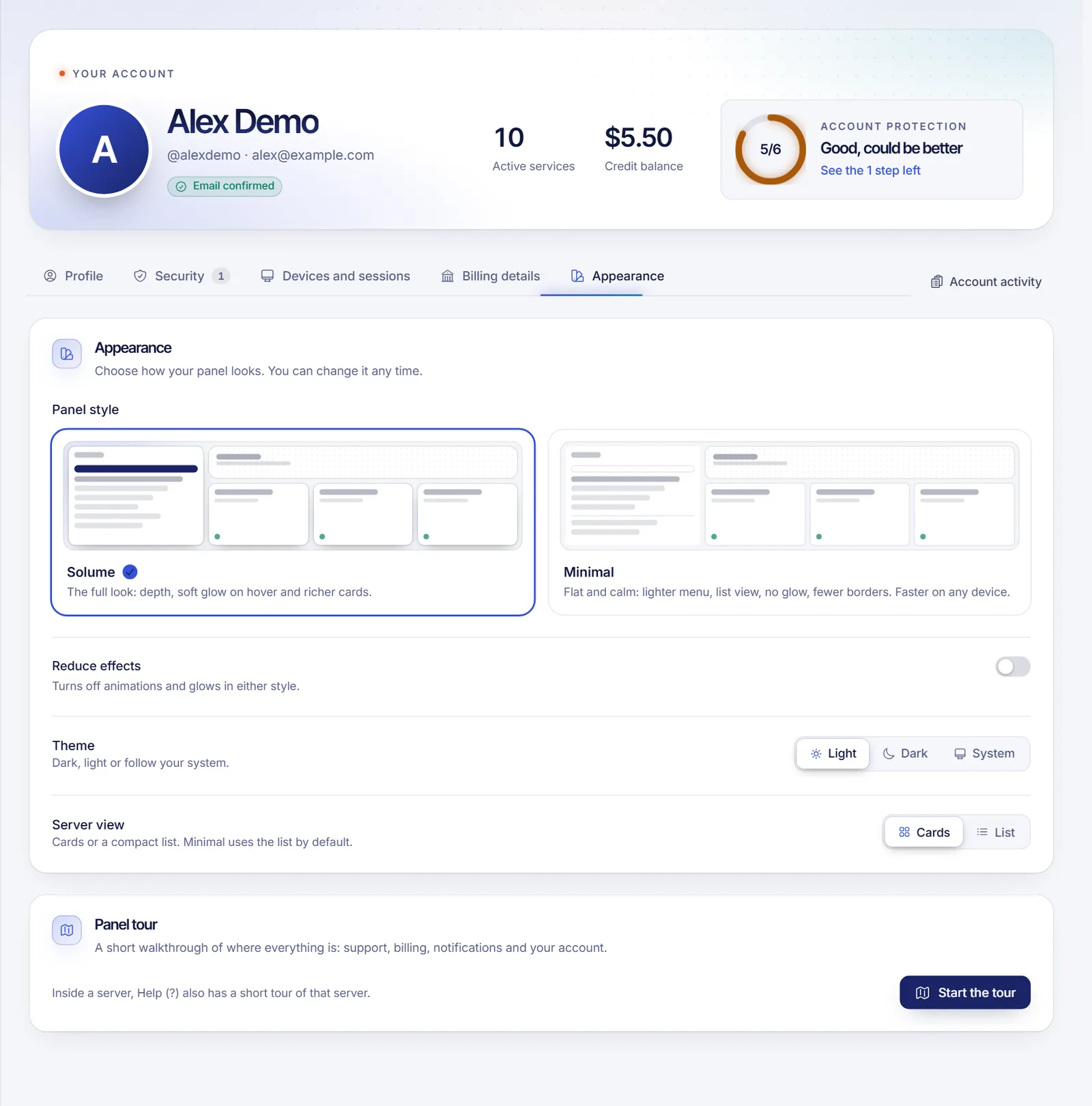
Choose a style: Solume or Minimal
Under Panel style, click one of the two cards. Each card has a small preview.
| Style | What it looks like | Good for |
|---|---|---|
| Solume | Depth, a soft glow when you hover over things and richer cards | The full SolumeCore experience on a modern screen |
| Minimal | Flat and calm: a lighter menu, the server list as a compact list, no glow, fewer borders | Older computers, small screens and people who prefer less decoration |
The style is saved to your account, so it follows you on any computer or phone where you sign in.
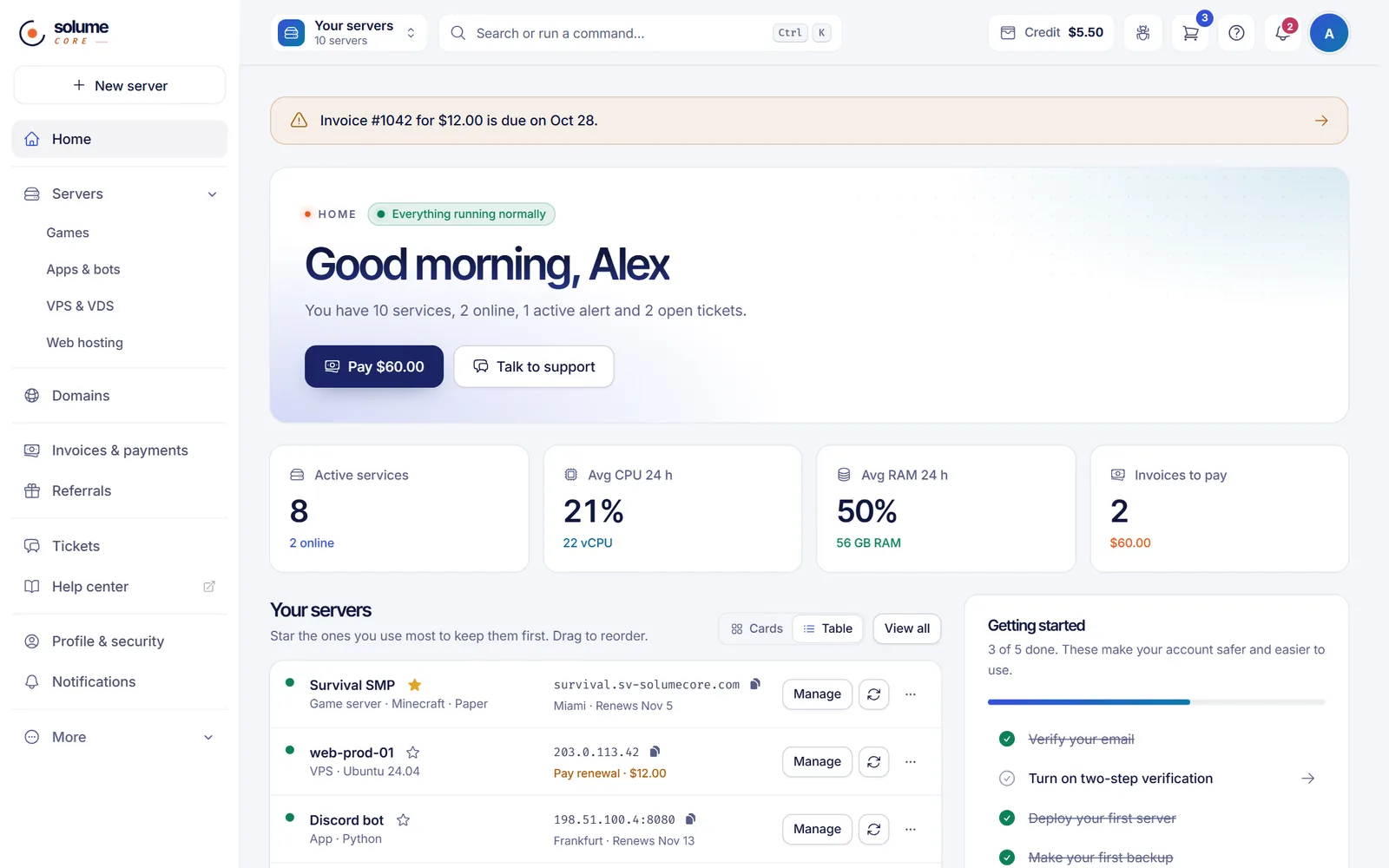
Reduce effects
Turn on Reduce effects to stop animations and glows in either style. Transitions end at once instead of sliding, which makes the panel feel lighter on older devices and is easier on people who are sensitive to motion. Loading spinners keep turning so you can still tell when something is working.
If your computer or phone is set to reduce motion in its accessibility settings, the panel already follows it, even with the switch off. Reduce effects is saved to your account, like the style.
Theme and server view
The same page has two more choices:
- Theme: Light, Dark or System, which follows your device and can change by itself at night. The account menu has the same choice under Light, Dark and Match my device.
- Server view: Cards or List for your server list. Minimal starts with the list; you can still pick cards.
The theme and the server view are remembered in each browser, so set them once on every device you use.
The first time you sign in
The first time you open the panel, a short window asks how you want to see it, with three options: Solume, Minimal and Solume · Optimized, which is Solume with Reduce effects turned on. You can also pick the theme and the server view there. The panel changes live as you choose. Click Save and continue, or Not now to keep the default look.
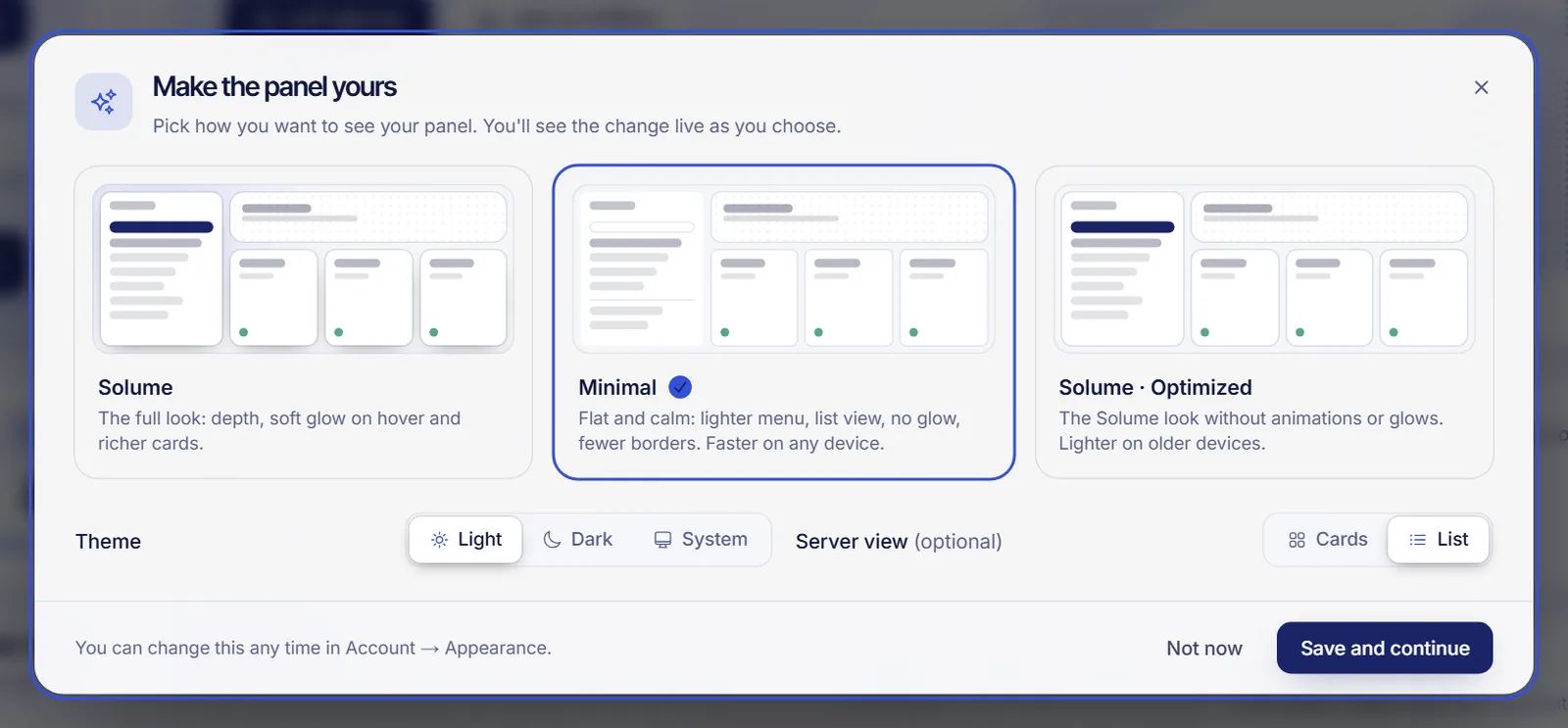
Whatever you pick, you can change it later in Account › Appearance. After saving, the panel offers a one-minute guided tour, which you can also skip.
Troubleshooting
The style changed back after I signed in on another device
The style is saved to your account when you choose it. If you see a message that it could not be saved, check your connection and pick it again.
The panel still animates with Reduce effects on
Loading spinners keep turning on purpose. Everything else should stop moving. Reload the page once if you changed it in another tab.
My server list shows cards on one computer and a list on another
The server view is saved per browser. Pick Cards or List on each device.
FAQ
Which style is faster?
Minimal is the lightest, and Reduce effects makes either style lighter. On a modern computer both feel the same.
Does the style change what I can do in the panel?
No. Only the look changes. Every option is in the same place in both styles.
Where is the dark mode?
In Account › Appearance, under Theme, or in the account menu under Dark.
Can I go back to the look I had before?
Yes. Choose Solume with Reduce effects off, which is the default look of the panel.