Take the Guided Tour of the SolumeCore Panel
Take the guided tour of the SolumeCore panel or your server: where to start it, how to move with the keyboard, what each step shows and how to repeat it.
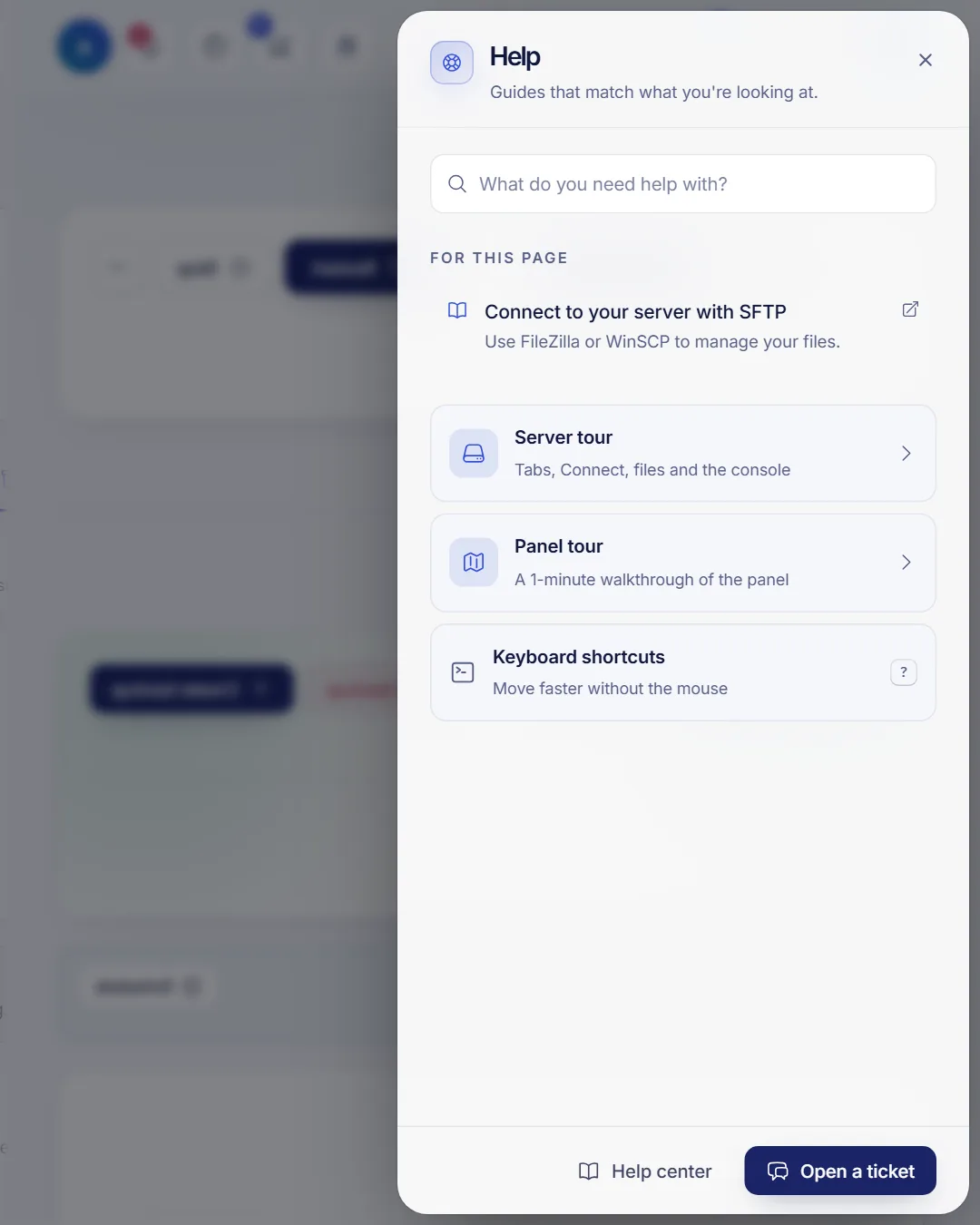
The SolumeCore panel has two short guided tours that point at each part of the screen, one step at a time: the Panel tour, about a minute through the menu, billing, support and your account, and the Server tour, through the tabs, Connect, Files and the console of a server. To start one, press Help (?) in the top bar and choose the tour you want. You can leave at any time with Esc and take it again whenever you like.
The tours do not change anything in your account or your servers. They only highlight where things are and explain them in a sentence or two.
Start a tour
There are several ways in:
- Help: click the question mark in the top bar, or press
?. At the bottom you find Panel tour and, when you are inside a server, Server tour. - Search: press
Ctrl+K(Cmd+Kon Mac), type "tour" and pick the one you want. - Account › Appearance: the Panel tour card has a Start the tour button, and shows Completed once you have finished it.
- The first time: after you choose how the panel looks the first time you sign in, the panel asks Want a 1-minute tour? Choose Take the tour or Not now. The first time you open a server, a small banner offers Start for the server tour. Each offer appears only once.
Move through the steps
Each step dims the rest of the screen and shows a card next to the part it explains, with a step counter such as 3 of 11.
- Next and Back move between steps. The arrow keys
←and→do the same. - Skip tour or
Esccloses it at any step. - Done, on the last step, finishes it.
If you reload the page in the middle, the tour continues where you left it in that same tab. When you close the tab, it starts from the beginning next time.
What the Panel tour shows
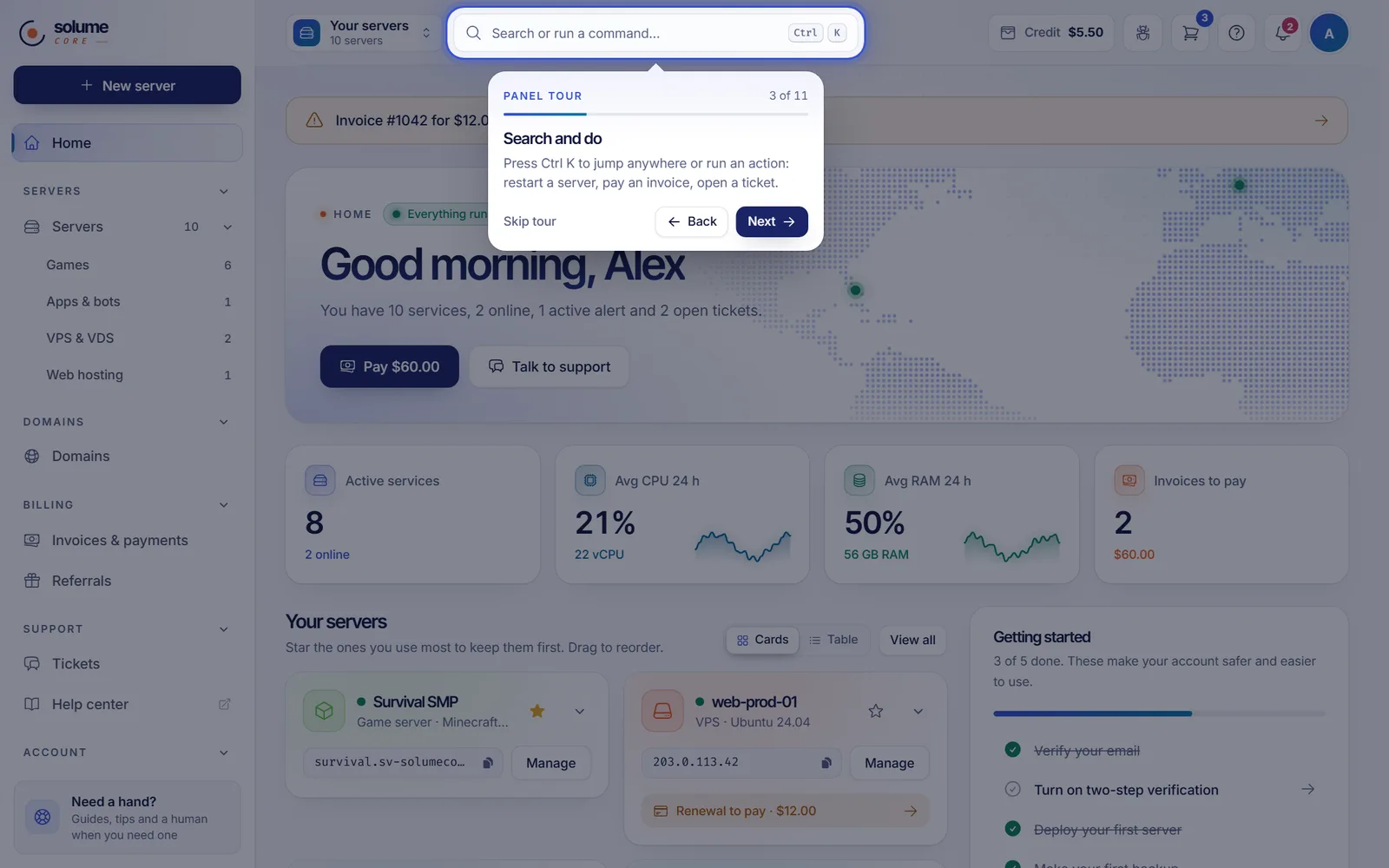
The steps follow the screen from top to bottom: New server, to order a game server, VPS, app or web hosting; Servers, with every server you have; Search and do (Ctrl+K); Your servers on Home; Billing; Support and, when it is available, the live chat; Notifications; Help; Report a bug; Your account, where you also change the panel style; and More, the folding entry at the bottom of the menu with Firewall, account activity, integrations, API keys and AI.
On a phone the steps adapt: they point at the menu button, the bottom bar and the account menu instead.
What the Server tour shows
Open any of your servers and start Server tour from Help. It goes through:
- Your server at a glance: the header with the live status, the address to copy and the power buttons.
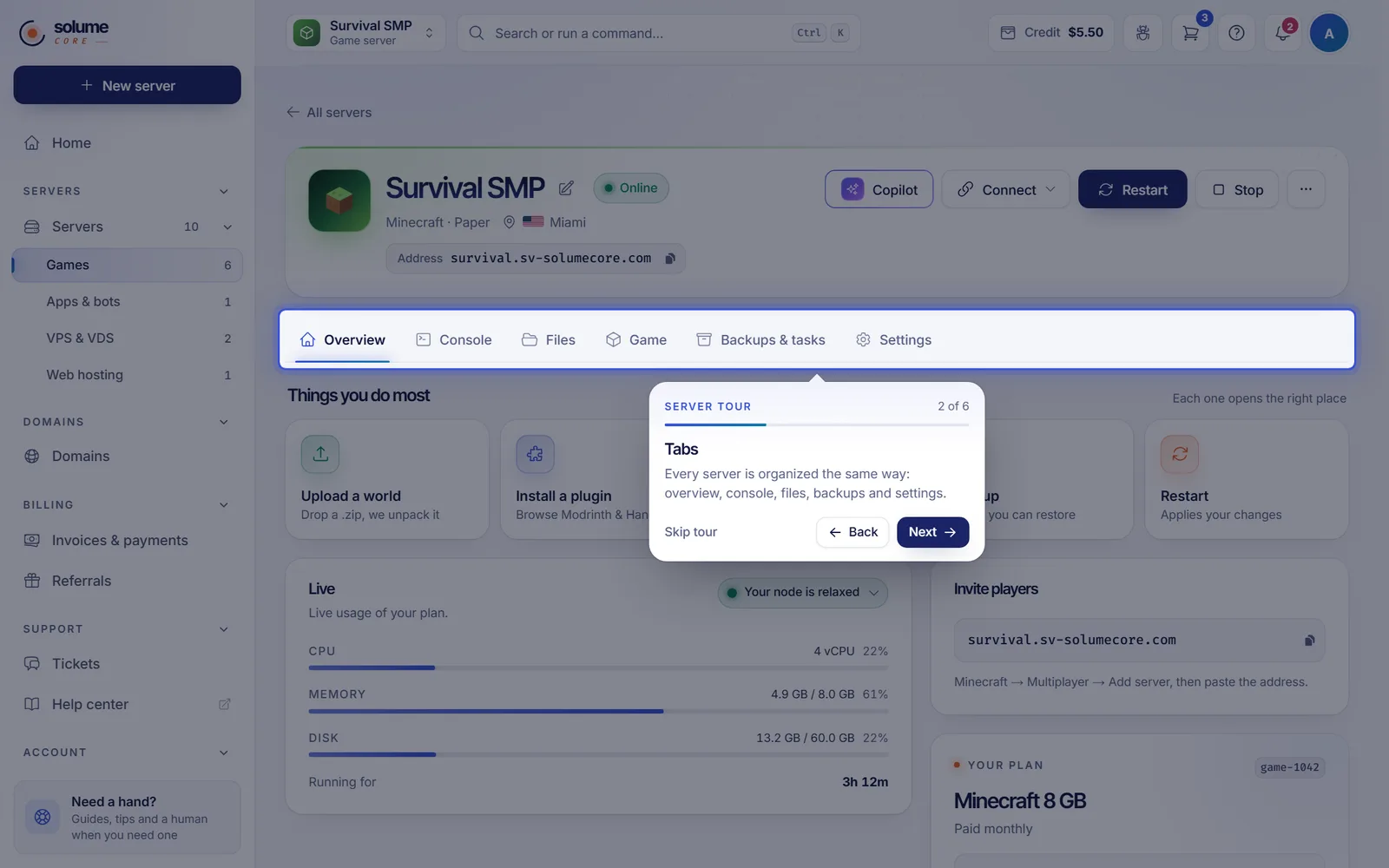
- Tabs: every server is organized the same way, with overview, console, files, backups and settings.
- Connect: the addresses, ports and credentials to connect, ready to copy.
- Files and SFTP: edit files in your browser, or use the SFTP details at the top of Files in FileZilla or WinSCP.
- Live console: the console at the bottom of every tab, which you expand to type commands.
- Settings: grouped in the menu on the right as general, network, access and advanced.
The tour opens each tab as it talks about it, so you see the real place. Which steps you get depends on the type of server: web hosting has no console, for example.
FAQ
I closed the tour by mistake. How do I open it again?
Press ? or click Help in the top bar and choose the tour again. It always starts from the first step.
Will the tour offer itself every time I sign in?
No. Each offer appears only once. The panel remembers in this browser that you finished or closed a tour, so on another computer or phone it may offer it once more.
Does the tour change any of my settings?
No. It only points at things on the screen. Nothing is saved or changed in your account or your servers.
Can I take the tour on my phone?
Yes. The steps adapt to the phone layout, pointing at the menu button and the bottom bar.